How to Download TikTok Videos on iPhone (Without an App)
Learn the safest and fastest way to save any TikTok video to your iPhone's Camera Roll without a watermark. No app or shortcut required—just your browser.

Trying to save a TikTok video on your iPhone can be frustrating. You either end up with a distracting watermark, or the creator has disabled the “Save Video” button entirely. While the App Store is filled with downloader apps, they are often unreliable, loaded with ads, or require expensive subscriptions.
The good news is you don’t need an app.
This guide will show you the fastest and safest method to download any TikTok video—without the watermark—directly to your iPhone’s Camera Roll using only your web browser.
Table of Contents
- Why You Shouldn’t Use the In-App “Save Video” Button
- How to Download TikToks on iPhone (No App Needed)
- Step 1: Copy the TikTok Video Link
- Step 2: Use a Web-Based Downloader in Safari
- Step 3: Save the Video to Your Camera Roll
- Frequently Asked Questions (FAQ)
Why You Shouldn’t Use the In-App “Save Video” Button
Using TikTok’s native save feature has three main drawbacks:
- Annoying Watermark: It embeds a bouncing watermark with the creator’s username that covers the edges of the video.
- Reduced Quality: TikTok often compresses the video file, resulting in a lower-quality version than the original.
- It’s Often Disabled: Creators can prevent users from downloading their videos, making the “Save Video” button unavailable.
Using a web-based tool bypasses all of these issues, giving you a clean, high-quality copy of the original video.
How to Download TikToks on iPhone (No App Needed)
This method works directly in Safari and saves the video to your Photos app.
Step 1: Copy the TikTok Video Link
First, you need the link to the video.
- Open the TikTok app and find the video you want to download.
- Tap the Share icon (the arrow on the right side of the screen).
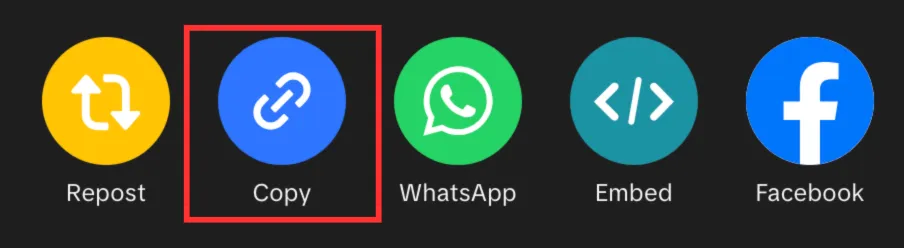
- In the menu that appears, tap Copy Link.
Step 2: Use a Web-Based Downloader in Safari
Next, you’ll use a free online tool to process the link.
- Open the Safari app on your iPhone.
- Go to a TikTok downloader website like MediaTools’ TikTok Downloader.
- Tap the input box, then select Paste to insert the link you copied.
- Tap the Get Video button. The tool will analyze the link and prepare the video file.

Step 3: Save the Video to Your Camera Roll
This final step is where many people get stuck, but it’s simple once you know where to look.
- After the tool processes the video, tap the Download HD Video button.
- A confirmation pop-up will appear. Tap Download.
- Look for the Downloads icon in your Safari address bar (it’s a small circle with a down arrow). Tap it.
- Tap on Downloads from the menu to see your downloaded file.
- Tap on the video file to open it in a full-screen preview.
- Finally, tap the Share icon in the bottom-left corner (a square with an arrow pointing up) and select Save Video.
The video is now saved to your iPhone’s Photos app (Camera Roll) without any watermark.
Frequently Asked Questions (FAQ)
1. Is this method safe? Yes. Because you are not installing any third-party apps or iOS shortcuts, your device remains secure. Web-based downloaders simply process a public link and provide you with the direct video file.
2. What if the video is private? This method only works for public TikTok videos. If a user’s account is private, their videos cannot be accessed or downloaded by external tools.
3. Where does the file go if I don’t save it to my Camera Roll? By default, Safari saves all downloaded files to the “Downloads” folder within the Files app on your iPhone. You can open the Files app, navigate to that folder, and move the video to your Photos from there.
4. Can I download just the audio or sound from a TikTok? Yes, the process is very similar. You can use a specialized tool like our TikTok Sound Downloader to extract the audio and save it as an MP3 file to your Files app.
Ready to try it yourself? Head over to the MediaTools TikTok Downloader and save your first watermark-free video in seconds.